Browser extension
Download & setup guide
Replace your in-game skins visually — only you see the change. No hacks, no game modifications. Works on Chrome, Edge, Brave & Opera.
Part 1
Installing the Extension
5 steps- 1
Download the zip file
Click Download Extension above — the file downloads automatically. Save the
.zipsomewhere easy to find (e.g. your Desktop). - 2
Extract (unzip) the file
You must extract before loading — do not load the zip directly.
- Windows: Right-click the zip → Extract All… → Extract
- Mac: Double-click the zip — a folder appears automatically
Open the extracted folder and confirm it contains
manifest.json. That's the correct folder to load. - 3
Open the Extensions page
Click the address bar, type
chrome://extensionsand press Enter. - 4
Enable Developer Mode
In the top-right corner of the Extensions page, toggle Developer mode ON. Three buttons appear: Load unpacked, Pack extension, Update.
- 5
Load the extension folder
Click Load unpacked → select the extracted folder (the one containing
manifest.json) → click Select Folder.The extension appears in your list. Click the puzzle-piece 🧩 in your toolbar → pin 📌 Skins Redirector for quick access.
Part 2
Signing In
2 steps- 1
Create a free account
Go to evohamza.com, click Register, and create a free account with a username, email, and password.
- 2
Sign in to the extension
Click the extension icon in your toolbar → enter your username and password → click Sign In. Your session is remembered permanently — no need to sign in again.
Part 3
Getting Skins
2 steps- 1
Choose a membership
Free accounts get the standard skins. Basic unlocks event skins, and Pro unlocks custom skins and pets too. See the Membership page for what each plan includes.
- 2
Browse your skins
On the main site, browse skins by character. Everything included in your plan is yours instantly — no separate purchase needed — and it appears in the extension automatically.
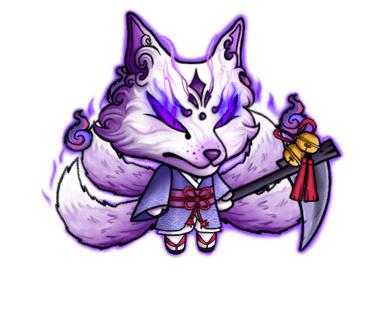
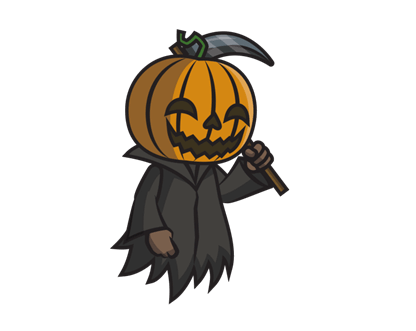
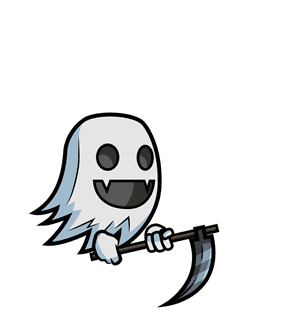
Supported characters
Part 4
Setting Up a Skin Redirect
4 steps- 1
Open the extension popup
Click the Skins Redirector icon in your toolbar. Make sure you're signed in — you'll see the main panel with tabs.
- 2
Select your character & click an owned skin
In the 🎨 Skins tab, use the dropdown to choose a character. Skins you own are shown with a green ✓ badge. Click any owned skin — a redirect panel slides up.
- 3
Choose the target skin & apply
Select the skin you want to visually see, then click Apply.
Example: You own
knight. Click it → selectretroKnight→ Apply. Now when you play asknightyou seeretroKnight. - 4
Open EvoWorld and play
Go to evoworld.io and select your skin in-game. The extension replaces the sprites automatically — no page refresh needed.
Part 5
Managing Redirects
3 steps- 1
View active redirects
Extension popup → ✅ Active tab. See all current redirects with character, FROM skin → TO skin. The badge on the header shows the total count.
- 2
Remove a redirect
Click the
✕button next to any redirect in the Active tab. The skin reverts to its original appearance immediately — no restart needed. - 3
Redirects persist automatically
Redirects survive browser restarts and are synced to your account. They're reapplied every time you open EvoWorld — no setup needed each session.
Inside the popup
Extension Tabs Overview
No. The redirect only changes what you see on your screen. Other players always see your actual in-game skin.
No. You only need to own the skin you're redirecting FROM. The target skin can be any skin available on this site.
This tool only changes local image rendering in your browser. It does not modify game data, give unfair advantages, or interact with EvoWorld's servers in any way.
Click the puzzle-piece 🧩 icon in your toolbar and pin the extension again. If it's gone entirely, go to chrome://extensions and check it's still loaded and enabled.
Check: (1) you're signed in to the extension, (2) the redirect appears in the Active tab, (3) you selected the correct character in-game. Try refreshing the EvoWorld page.
Click Cancel or Keep — do not click Disable. The extension continues working normally. This prompt appears occasionally in Chrome.
When a new version is available, a 🔔 badge appears next to the 🔄 Updates button in the extension popup. Click it — if it's a data update it applies automatically; if it's a full update, you'll be sent here to download the new zip and reload it.
All set?